Pages

Sponsor

Ads

Malwares

Chatting Softs

Media Players

Showing posts with label news on smartphone. Show all posts

Saturday, 27 February 2016

How to speed up your Android smartphone


How to speed up your Android smartphone
Though the hardware of smartphones is steadily becoming more capable it can't be utilised to its fullest potential without the software to tap it. This is personal technology's modern hurdle - the optimisation of both hardware and software to ensure a fast and seamless user experience.

The effects of this optimisation are most tangible for smartphone users, who in today's fast-paced world become impatient and frustrated if their smartphone starts slowing down, hanging, or otherwise impeding their productivity.

The slowdown of Android smartphones can be caused by several reasons, and usually starts becoming noticeable after several months of using them. Here are a few tips for users that feel their Android smartphones have slowed since they purchased the devices.

1.    Install a third-party app launcher
Most Android smartphone manufacturers customise the OS on their devices, with specially-designed skins, launchers or UIs that sport widgets, layouts and other custom features in addition to the vanilla OS offering. While some users do find these customisations and added features useful, they can potentially slowdown the smartphone.

nova_launcher_google_play.jpgA simple workaround is to install a good third-party launcher (simpler than rooting or installing a custom ROM on the smartphone), which should remove most of the custom features, whilst also providing personalisation options. Some of the best launchers available in the Google Play store are 'Nova Launcher', 'GO Launcher EX', and 'Apex Launcher'.

2.    Remove extra apps, wallpapers, widgets

If users have a significant number of apps installed, it could slow down their smartphones. Users need to ask themselves if all the apps they have installed are being used, and then uninstall unused ones. Some apps cannot be uninstalled (especially bloatware apps from smartphone manufacturers), so users will have to settle for disabling them.

how_to_speed_up_your_android_smartphone_ndtv_extra_widgets.jpgLive wallpapers, and an excess of widgets on home screens, can also slow down smartphones, and if users are experiencing performance issues they should consider using static wallpapers instead, and removing any non-vital widgets.

3.    Disable non-vital background processes, check syncing appsSome apps start up with the phone, while others are constantly syncing with online services. Both of these can dramatically slowdown users' smartphones. To check which apps are running in the background, users should visit the Apps section in Settings, and swipe to the 'Running' tab. If there are apps running in the background that are not being utilised, users should try uninstalling the apps, or disabling them, in case the apps can't be removed.

how_to_speed_up_your_android_smartphone_ndtv_app_settings_running.jpgAnother thing to be checked is if there are apps that are syncing in the background, and if the benefits of syncing are being utilised by the user. If not, users can turn off synchronisation, saving both data and system resources. To do this, visit Settings>Data usage (could be a separate section called 'Usage' under 'Wireless & networks' menu, depending on your Android version), and scroll down to see which apps are using data.

how_to_speed_up_your_android_smartphone_ndtv_app_settings_auto_sync_data_google_sync.jpgUsers can then either visit individual app settings to turn off synchronisation, or visit the 'Data usage' section's context menu, which has the 'Auto-sync data' option (not present in all Android versions), which can be turned off.

To do the same for any Google app or services, users will need visit Settings>Accounts>Google>UserProfile. Here they can turn off sync settings for individual Google apps and services.

advanced_task_killer_google_play.jpgA must-install for Android smartphone users is Advanced Task Killer, which allows users to kill any apps that are taking too much memory (RAM) or slowing down the device for other reasons, such as instability.

4.    Clear app cache
Much-used apps will build up a cache that can slowdown an Android smartphone, and users can delete each used apps' cache regularly to speed up their devices. Unfortunately, this will have to be a rather regular process, as apps will start rebuilding their cache from the moment they are launched. To individually delete each app's cache, users will need to visit Settings>Apps, select the relevant app, and then click on the 'Clear cache' button.

how_to_speed_up_your_android_smartphone_ndtv_clear_cache.jpgTo bulk-delete multiple apps' cache, or to set up scheduled cache-clearing, users can download a third-party application called 'App Cache Cleaner' from the Play Store, which can delete cache for multiple apps, and allow users to set up intervals for regular cache cleaning. Users can also delete cache data for all apps via a native Android option, found at Settings>Storage>Cached data.

app_cache_cleaner_google_play_new.jpg5.    Disable animations
Animations are usually graphical transitions between menus, app drawers, and other interface locations. They use system resources to be generated, and occur quite regularly when navigating through a smartphone. They serve no purpose apart from beautifying the smartphone experience, and if users find their devices are slowing down, it is a good idea to turn off animations with no adverse impact on day-to-day use.

how_to_speed_up_your_android_smartphone_ndtv_developer_animation_options.jpgTurning off animations unfortunately is not very easy, with the option usually hidden behind the 'Developers options' section. To access 'Developers options', users need to visit Settings>System>About Phone where they can find the 'Build number' of their phone. Once they tap the 'Build number' seven times, users will then see 'Developer options' in the system menu. Here, they turn off all types of animation.  Users should be careful not to turn on or off any other option in this section.

6.    Clean out built-in storage

If the built-in storage of a smartphone is nearly full, the device will slow down quite dramatically. Between 10 and 20 percent of the total built-in storage should be available or free to avoid slowdowns. While a simple solution could be to simply delete all unused apps and clear cache data to save space, ideally users should be looking at a longer lasting solution. Most smartphones come with the option to expand built-in storage via microSD card.

how_to_speed_up_your_android_smartphone_ndtv_apps_storage_move_to_sd_card.jpgIf users' smartphones feature microSD card storage expandability, they should move all media to it, such as pictures, music and videos. Apps can also be moved from internal storage to SD card, by visiting the app's settings via Settings>App and navigate to individual apps. Some older versions of Android don't support this feature, and users will have to download an 'Apps to SD card' app from the Google Play store.

7.    Update firmware
While certain updates can have adverse effects, the general rule of thumb is that a firmware update for a smartphone will bring improvements of various types, usually including performance optimisations. Users experiencing reduced performance on their smartphones should check if the manufacturer has released a firmware update for them.

how_to_speed_up_your_android_smartphone_ndtv_update_firmware_no_update.jpgTo do this, users should visit Settings>System>About>Software Updates and check if an update is available over-the-air. If not present here, users can also check by connecting their smartphones to the PC suite software provided by the manufacturer, and check for updates there.

While most updates do not require users to back up their smartphones before the update, we recommend users do so just in case something does go wrong - it's better to be safe than sorry.

8.    Root phone, install custom ROM
While we don't recommend this method to anybody but a power user, the problem of a slowing Android smartphone is often solved by this method, with the user installing a custom ROM that is lighter and less-resource intensive than the manufacturer-customised UI and firmware. The method is similar to installing a third-party app launcher (Tip 1), however, has a much wider effect, essentially replacing all the software on the phone.

There are several guides and resources available online that can help users root their devices, and install custom ROMs from a database of independently developed firmware. XDA Developers Forum is one of the best resources for this, and users are recommended to read in detail the instructions and discussions about the specific custom ROM for their particular smartphone before going ahead. You can also visit CyanogenMod's website, which provides several easy installation tools and walkthroughs for its ROMs.

cyanogenmod_facebook.jpgPlease note, rooting smartphones or installing custom ROMs on them is usually (there are some tools also available) a rather complicated task, and a risky one that can see users lose all their data, or end up with a bricked device. Rooting or flashing smartphones also usually voids manufacturer warranty.

9.    SSD TRIM
Smartphones utilise solid state drives for their storage needs, and an inherent flaw with such a storage device is that when data is deleted from flash memory cells, the cells need to be completely wiped before they can used for a write process again. This requires the OS to issue a TRIM command to the drive to specific which cells are unused and should be wiped.

lagfix_google_play_new.jpgGoogle reportedly fixed this problem in Android 4.3 and higher, but if you are running an older version of Android, a solution does exist that will allow users to issue TRIM commands to the SSD. Users will need to root their smartphones, and install LagFix from the Play Store. Once again, rooting smartphones is a risky process and we recommend caution.

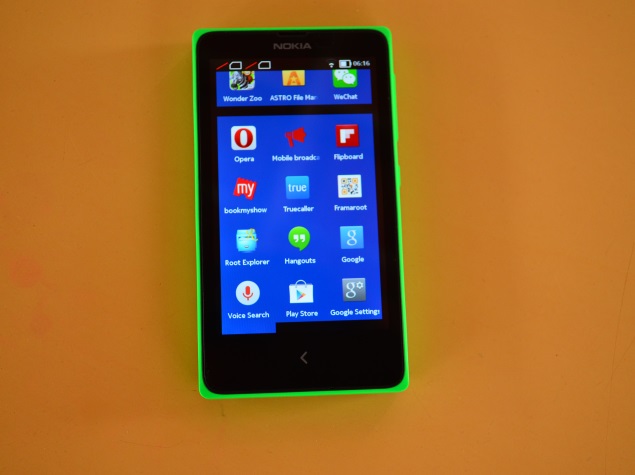
How to root Nokia X and get access to Play Store


How to root Nokia X and get access to Play Store and Google Now
Few handsets have seen the kind of speculation that preceded the launch of Nokia's first Android smartphone. But a lot of people were let down to learn that the phone runs a highly customised version of Android, making way for Microsoft's services such as Bing search, OneDrive (earlier called SkyDrive), Outlook.com and Skype among others, instead of the Google Play store and Google services.
(Also see: Nokia X Dual SIM review)
The Nokia X is based on the Android Open Source Project (AOSP), and is powered by Microsoft and Nokia services. Nokia has used the AOSP version corresponding to Android 4.1 Jelly Bean as the baseline for its operating system. The highlight of the Nokia X is the highly customised version of Android, with Metro-inspired UI and access to Nokia's own app store. While there's no access to Google's Play Store, Nokia is offering side-loading of Android apps from any third-party source: 1mobile market, SlideME market, Aptoide, and Yandex Store.
However, it is possible to install the Google Play store on the Nokia X through rooting. This means giving the user root permission on the phone. By rooting a device you can run apps that require access to certain system settings, and the ability to flash custom ROMs to the phone, which can actually add extra features. Before starting, note that unlocking the bootloader or rooting process voids the warranty of your device. And more importantly, the rooting process might brick the device if you make any mistakes, so be careful when following these steps.


Method 1-

Rooting the Nokia X:
In order to run Google apps, you will be required to root your Nokia X with the following steps-
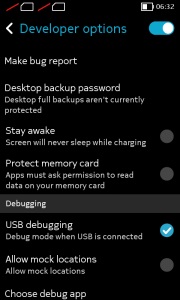
nokia_x_debugging.jpg-Users will be required to enable USB debugging on the Nokia X that can be found in Settings' Developer option. You will have to tick the USB debugging box to successfully perform the rooting process.
To start, you will have to enable USB debugging. To do this, first go to your phone's Settings > Developer and tick the USB debugging box.

-Next users have to download the Farmaroot.apk to the Nokia X or to a Windows PC (transfer it to the Nokia X). Use the automatic setup to install the root tool on the Nokia X phone.
To start, go to the Farmaroot.apk folder in your Nokia X > Click the .APK file and it will start the automatic installation of the app on to the phone, follow the instructions.
(If a file is transferred from PC to the Nokia X, users can search for the required file on the phone via the ASTRO File Manager, which comes pre-installed on the device.)
nokia_x_framaroot_app_success.jpgOnce, the Farmaroot has installed on your Nokia X, choose the app icon in app drawer to install SuperSU. To install, open the SuperSU file and choose the Gandalf exploit, which is a dropdown option in the Farmaroot app.
When the installation is complete, there will be a success pop-up message on the screen. Now you just need to reboot your Nokia X for successful completion of the rooting process.
- The Farmaroot app on the Nokia X also gives an option to unroot the device, if you want to bring it back to normal.
Installing the Google Play store on the Nokia X:
-Download the Google services APKs from here on your Nokia X or a Windows PC and copy the APKs to the phone using a USB cable.
To start, go to this link install the Google services APKs to your phone or Windows PC. Transfer all the Google APKs to Nokia X using a USB cable.
-Now, you will be required to extract all the Google APKs. To do this, first download a root explorer app on your Nokia X, which is a file manager for root users.
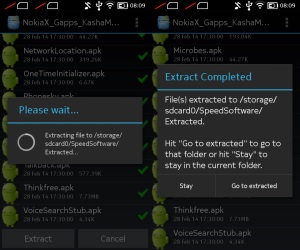
nokia_x_google_apk_extract.jpgGo to the folder where you saved the Google APKs and select all the files; next from the menu choose the option Extract all. The extracted APK files will be automatically stored on to microSD card's SpeedSoftware folder. At this stage, do not install the APKs.
-The extracted files then must be moved on to /system/apps folder of the Nokia X. (Use the root explorer app, and go to the SpeedSoftware folder on the microSD card. Select the files, and from the menu, choose Cut. Then, go to the /system/apps/ folder, and choose Paste from the menu.)
-Next, you will have to change the permission of all the extracted files in the /system/apps folder by selecting all the files that were extracted (Google APKs) and opening the Permission option in the menu for the all the apps. The Owner, Group and Other options should have Read Only checked in the popup that comes when you press Permission. Only Owner should have the Write option checked. Reboot your Nokia X once the permission has been changed for all the extracted Google APK files to make the device more stable.
nokia_x_play_store_app_menu.jpg
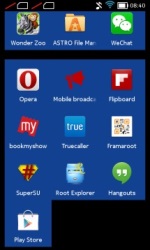
-Now you will find the Google app icons for Hangouts, Gmail, and Google Play Store among others in the app drawer.
Enjoy, you have successfully installed the Google Play store and other Google services on your Nokia X. Now sign-in to your Google account to access Google services on your Nokia X and you can explore your favourite Android apps directly from the Play Store.
This method works with the earlier version of the Nokia X software, but once you move to version 11.1.1, new security features don't permit this technique. There's a new method that can help if you've updated your phone though.

Method 2-
In case the above method does not work because of new security restrictions, here's what you can do:
-Install the Nokia composite ADB interface on your Windows PC, in addition to installing the Framaroot.apk on your Nokia X (following the steps detailed above).
superuser_request_nokia_x.jpgThe Nokia composite ADB interface folder installed on your PC should have two sub folders for KingoRoot_NokiaX_Mod and Nokia X USB drivers.
-Plug your Nokia X to the Windows PC with a USB cable, open the device manager and right click on the connected device. This gives the Update Driver option on your Windows PC, to install the ADB drivers.
You might be prompted to enter new drivers for your Nokia X, which can be found the Nokia composite ADB interface folder - Nokia X USB drivers. Just choose browse, go to the folder and select the driver.
-Now you need to open the KingoRoot.exe file on your Windows PC, which can be found in the Nokia composite ADB interface folder. Please note that you need to keep your Nokia X connected to the Windows PC during the complete process.
kingoroot_app_screenshot.jpg-Once you have started the KingoRoot app on the PC, it will appear on your Windows PC screen giving you an option to root the connected device. When the phone is not rooted, KingoRoot on the PC shows the status of the connected device as Not Rooted.
-Now users need to choose the Root button in the KingoRoot app on your PC to root the device. This will also install the SuperSU app on the connected Nokia X device automatically. This will take few minutes.
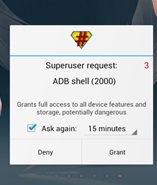
-Reboot the phone after the connected device (Nokia X) status in KingoRoot app shows Rooted on your PC. After the reboot, open the SuperSU app on the Nokia X, this will for the ask grant option on the app. Press grant and move ahead.

-After pressing grant, open KingoRoot on your PC again. This time the KingoRoot shows two options - Root again or Remove Root. To return your phone to normal, you can click on Remove Root.
-Now you can repeat the method of installing the Google Play store on the Nokia X (check Method 1) by extracting all the Google APKs using the root explorer.
nokia_x_google_search.jpg
*Note- Our recommendation would be to install Google Play Store and other services on your Nokia X when it is running version 10.0.3, rather than updating the phone to software version 11.1.1. This is because the new method requires the KingoRoot app on your PC and the steps are a bit complicated to the Framaroot app that worked well enough.

12 best Ways to Use Your Android Smartphone More Efficiently

12 Ways to Use Your Android Smartphone More Efficiently


Android tips are a little trickier to offer than iPhone tips, for a couple of reasons. For one, it's often up to carriers or manufacturers - rather than consumers - who have control over which version of Android your phone is running. Furthermore, there are so many more kinds of Android phones, which have their own neat little features. My phone is a Samsung Galaxy S6 (Review | Pictures), but menu options may be different depending on what type of phone you use.
I've tried to keep these tips as universal as possible.

1) Customise, customise, customise
In my opinion, the very best part about being an Android user is the fact that you can mess around a lot with your phone to make it your own. Many readers wrote in to say that they like using custom keyboard apps on their Android phones.
But there's a whole world of customising apps out there available exclusively to Android phones. For example, you can choose to change the way your very home screen looks, or how your apps are organised by using something called an app launcher. I personally use Yahoo's Aviate, which automatically organises apps by type, time of day and location. So if I'm at work, for example, it won't put Netflix on my short list of apps. If it's time to commute, travel apps may get a more prominent billing.
You can also download a variety of diallers and caller ID apps, for example, to further customise your phone. Really, the world is your oyster.

2) Embrace all of Google
Another key advantage of the Android life is that there's a lot of integration if you're a Google user. The core apps such as Gmail, Calendar, Photos and others should work seamlessly with your phone. Google's voice assistant is just an "OK Google" away.
A particularly nice feature in the latest version of Android (Marshmallow) is Google Now on Tap, which sort of acts as a Google-powered footnote to whatever you're reading tap a word and you'll get a Google search about it.
But even if you don't have Marshmallow, you can run a Google search on any phrase on any website in Chrome by highlighting text. A small window should slide up from the bottom of the screen, and tapping it will initiate a search. You don't even have to leave the page you're on. You can also turn this off in Chrome's settings. Just head to Setting> Privacy > Touch to Search.

3) Know what you're sharing
One question I get often about apps is how you can see what you're sharing with them. You can do this by going to your Settings menu and finding your Applications Manager. Selecting any particular app should give you a list of permissions, along with an explanation of what they mean.
If you happen to have the latest version of Android, you should also be able to get a little more control over the app permissions. So if you want to, for example, share your location with an app but aren't that happy about sharing your contact list, you may be able to switch that off. It depends on the app, as well, so this may not work for every program.

4) Mess around with your defaults
Another major perk of being an Android user is that you can change the apps that handle certain functions automatically. So if you have a browser you prefer, or a PDF reader you really like, you can use it automatically. If you'd rather always see YouTube videos in the YouTube app instead of on the mobile web, you can do that too.
It's pretty easy to do this; most often, your phone itself will ask you if you want to set a default app when you perform various functions. If you change your mind, you can go into the settings for whatever default app you've chosen through the Settings menu and choose Clear Defaults.
Some phones, such as the Samsung Galaxy S6, also have a menu called Default applications, which will list all the defaults you've selected on your phone.

5) Track your data use
Worried about exceeding your data plan? Android phones should have a built-in data tracker that lets you keep tabs on what you're using. This should be in your Settings menu, under the heading such as Data usage.
You can also customise this feature so that it fits with your billing cycle.

6) Disable useless apps
You may not be crazy about every app that comes with your phone; often carriers and manufacturers add apps that you simply won't use. But while you can't always uninstall these apps, you can often keep them from running on your phone. On Android, you can disable these apps to keep them from running in the background. Just head to your phone's version of the application manager, tap on the app you want to sedate, and hit Disable.
If you ever want to re-enable the app, you can do that by following the same steps.
(Also see:  Five Simple Tips to Increase the Life of Your Phone's Battery)

7) Conserve your battery life
If your phone has a power-saving mode of some kind, you can choose to have it automatically kick in when your phone's battery hits a particular charge percentage. Head to the Battery section of your Settings menu. If your phone does have a power-saving mode option, go into that feature's settings and set it to kick in automatically when your battery's at various power levels. (On my Samsung Galaxy S6, the options are 50, 20, 15 and 5 percent.) That could get you an extra hour or so of battery life when you're running low.

(Also see:  Eight Simple Tips to Increase the Battery Life of Your Mobile Device)
8) Become a developer to make things run more quickly
If you want to make your phone move a little more quickly, you can enable its developer options to speed it up. The process to turn on this option is a little funny; you have to head into the About this phone menu in your settings, then find the section that says Build number. Then - and I'm completely serious about this - you tap that item seven times.
Congratulations, you're now a developer! At least, according to your phone. You should see a new item pop up in the About menu, called Developer options. Within that menu, you can change a few options - namely Window animation scale, Transition animation scale and Animator duration scale - to .5x or lower. This should speed up your phone by reducing the time it spends animating transitions between windows and apps. This does make things feel a little more abrupt when you're switching between windows. But remember: you can always put it back if you have problems.

9) Swipe down for quick access to settings
Need to get quick access to your flashlight? A one-touch option for Airplane Mode? Locking the screen rotation? Swipe down from the top of your phone and you should find the Quick Settings menu. This is a pretty basic tool for navigating your phone, but you'd be surprised how many people either don't know about it or forget it.

Many readers also wrote in to note that you can rearrange which notifications appear in this drop-down menu on various phones -- I heard from Samsung, HTC, LG and Nexus users on this one.
Reader tips

10) Try out multitasking
Several Samsung owners wrote in to say that you can run two applications at the same time on many of their newer devices. To trigger that, you can tap and hold the Recent Apps button on your phone, which tends to be to the right of the physical home button. That will prompt it to go into split-screen view.

11) Use the Gesture search app
One reader wrote in to rave about Google Gesture Search, an Android-only app that lets you navigate through your phone with a number of gestures.
"If you need to find almost anything on your phone, you can usually find it with just a couple swipes of your finger," the reader wrote. The app works with a wide variety of Android devices and versions of the operating system.

12) Get quick access to the camera
Another Samsung user wrote in to share a tip about getting to the camera app faster. "The Samsung Galaxy 5's excellent camera is just a swipe away thanks to a shortcut that saves a few seconds normally spent on unlocking the device," she wrote. You can enable the shortcut on that device by heading to the Lock screen menu in your settings and selecting Camera Shortcut.
Other phones may already have a camera shortcut on the lock screen by default -- take a look! Some phones may have their own ways of getting to the camera fast. Some HTC phones, for example, will launch the camera if you hit the volume up button. Other phones, such as the Nexus 6P (Review | Pictures) and Nexus 5x (Review | Pictures), have options to launch the camera with gestures.


Apple Is Working to Make iPhones Even Tougher to Hack

Apple Is Working to Make iPhones Even Tougher to Hack Into: Report
 Fearing that the government may be able to order it to bypass security features in newer-model
 phones, Apple has begun working on enhancements that would prevent the company from updating the software of an iPhone without knowing a user's password, according to individuals familiar with the effort.
These security improvements would make it impossible for Apple to help the government unlock newer iPhones in the manner authorities want the company to do so now. The move would force those authorities to find a new technical solution even if they gain the legal authority to force the company to unlock the phones of suspects.
The move by Apple is another twist in a high-profile battle between Apple and the Justice Department, which last week demanded that the company help unlock the iPhone of Syed Rizwan Farook, one of the killers in the San Bernardino, Calif., shooting rampage.
The enhancements cannot be installed on older model phones, such as the iPhone 5c used by Farook. But engineers are trying to fix a problem on newer models, which have a security feature called Secure Enclave that protects some of the most sensitive data such as the phone's encryption keys. Currently, the software on the Secure Enclave can be updated without knowing a user's password.
(Also see:  Apple Being Asked for Access to Just One iPhone)
That, Apple engineers realized, was a vulnerability. Those engineers began thinking about addressing the issue before the San Bernardino attacks, but the fix became a priority more recently, said the individuals familiar with the effort, which was first reported by the New York Times.
Security experts hailed Apple's move.
"They've never thought before that they might be forced by the government to break into its own products and reverse security procedures," said Jonathan Zdziarski, a security researcher who has proposed about a dozen solutions to the problem to Apple. "Now that they've been forced into this mode of thinking, a lot of the security updates in the future will be not just to keep the hackers out, but to keep themselves out until the user authorizes the update."
News of the technical fix broke on the same day Apple chief executive Tim Cook defended his company's controversial refusal to help the FBI access the passcode-locked iPhone that belonged to Farook.
(Also see:  Why Even the FBI Can't Hack the iPhone)
Cook said that helping the FBI to bypass the iPhone's security "could expose people to incredible vulnerabilities."
"This would be bad for America. It would also set a precedent that I believe many people in America would be offended by," Cook said during an interview on ABC's "World News Tonight With David Muir."
Cook said Apple tried to help the FBI with other technological solutions, offering "significant advice" on how the iPhone might be cracked. But Apple does not want to go as far as the FBI says it now needs - writing software to get around the phone's security measures. Cook called it "the software equivalent of cancer."
"What is at stake here is can the government compel Apple to write software that we believe would make hundreds of millions of customers vulnerable around the world, including the US, and also trample civil liberties that are the basic foundation of what this country are made of," Cook said.
Cook said this case was about the future.
FBI Director James B. Comey, in a letter published Sunday, wrote that this case highlights the tension between privacy and safety.
"That tension should not be resolved by corporations that sell stuff for a living," Comey wrote.
Cook, in his interview, insisted that obeying this one court order would mean opening hundreds of other Apple devices if law enforcement wanted access to them as well.
"It is a slippery slope. I don't fear one - it is one," Cook said.
Muir asked Cook whether he has any doubts that opening this iPhone might help prevent a terrorist attack.
"David, some things are hard and some things are right. And some things are both," Cook said. "And this is one of those things."


Tuesday, 16 February 2016

Nexus 6P Review


Catering to different consumer demographics is a big deal these days - manufacturers have latched on to the fact that different people have different tastes, and that you can generate more sales if you tap into the likes and wants of folks who really dig a certain device style: compacts, tablets, phablets, devices with stylus pens, or even just moderately sized handsets. Because of that it has become very common to see device makers launch multiple new products simultaneously, and while Google is no stranger to launching both Nexus phones and tablets in the same breath, 2015 saw the first time the big G released not one, but TWO phones, as well as a hybrid tablet.
Google's latest batch sees the Nexus 5X as a revamp of the popular Nexus 5, something fans have long awaited as a more moderately sized, specced and priced Nexus variant. But we also have the Nexus 6P as a newer version of the Nexus 6, a premium device with a metal body and absolutely packed with high-end, cutting-edge hardware.

Nexus 6P Review: Design 

If you make a premium handset these days it NEEDS to be constructed from metal or aluminium. I don’t know who created this rule or when it was implemented, but it is one nearly all manufacturers follow right now and the result is, well, a lot of metallic handsets doing the rounds.
The Nexus 6P is no exception to this rule and is, as you’d expect, constructed out of only the finest build materials Huawei could lay its hands on. It is not a particularly eye-catching device from the front, looking like a long, black slab, but it does feature a very tight unibody design with excellent button placement (volume/power right hand side; screen unlock/fingerprint scanner on the back) that feels exceptionally premium in the hand.At the bottom you have a USB Type-C port, the new standard for charging and data transfer on phones, tablets and laptops which you’ll be seeing A LOT more of in 2016, and a slight protrusion on the back at the top where the camera is housed. At first this protrusion is a problem — I couldn’t stand the way it looked or why it had to be encapsulated inside what looks like a mini version of the pavilion from Lords Cricket Ground.
NEXUS is daubed along the back of the handset and about an inch above this is where you’ll find the Nexus 6P’s rather excellent fingerprint scanner. The protrusion and finger print scanner, as well as the NEXUS logo, are the most eye-catching elements of the Nexus 6P’s overall design and finish. On the whole I find the handset rather conservative, if I’m honest. It’s not “in your face”, it’s not too showy and it’s not too thin, either

One area of concern, however, is to do with the build materials: the Nexus 6P’s exterior chassis material is metallic to the touch and scratches-up VERY easily. An errant lighter or coin in your pocket can put a permanent scratch in the back of the Nexus, and when you’ve dropped £350+ on a handset this is not something you want to happen. For this reason, and a bunch more, GET A CASE! Do not learn the hard way as I did.

Nexus 6P Review: Display

The Nexus 6P has an AWESOME display. The giant 5.7in QHD AMOLED panel clocks in with a ridiculous 518ppi pixel density and some of the truest, brightest colours I’ve ever seen on a mobile phone. Colours really do pop off the screen and the contrast, thanks to the AMOLED panel, is stunning.
And if that wasn’t enough, the Nexus 6P supports ambient display mode as well which basically means you can view notifications and updates on a blank lockscreen without using any power. Not a new feature by any stretch, the original Moto X had it years ago, but a great addition to an already excellent Nexus handset.

Nexus 6P Review: Specs & Hardware 

  • Operating System: Android 6.0 Marshmallow
  • Display: 5.7 inches; WQHD (2560 x 1440) AMOLED display at 518 ppi; 16:9 aspect ratio; Corning® Gorilla® Glass 4; Fingerprint and smudge-resistant oleophobic coating
  • Rear Camera: 12.3 MP¹; 1.55 µm pixels; f/2.0 aperture; IR Laser assisted autofocus; 4K (30 fps) video capture; Broad-spectrum CRI-90 dual flash
  • Front Camera: 8MP camera; 1.4 µm pixels; f/2.4 aperture; HD video capture (30 fps)
  • Processors: Qualcomm® Snapdragon™ 810 v2.1, 2.0 GHz Octa-core 64-bit; Adreno 430 GPU
  • Memory & Storage: RAM: 3 GB LPDDR4; Internal storage: 32 GB, 64 GB, or 128 GB
  • Dimensions: 159.3 X 77.8 X 7.3 mm
  • Weight: 178 g
  • Color: Aluminium; Graphite; Frost
  • Media: Dual front-facing stereo speakers; 3 microphones (2 front, 1 rear) with noise cancellation
  • Battery: 3,450 mAh battery; Fast charging: up to 7 hours of use from only 10 minutes of charging
  • Wireless & Location: LTE cat. 6; Wi-Fi 802.11a/b/g/n/ac 2x2 MIMO, dual-band (2.4 GHz, 5.0 GHz); Bluetooth 4.2; NFC; GPS, GLONASS; Digital compass; Wi-Fi use requires 802.11a/b/g/n/ac access point (router). Syncing services, such as backup, require a Google Account.
  • Ports: USB Type-C; Single Nano SIM slot: 3.5 mm audio jack
  • Material: Anodized aluminum
To say the Nexus 6P has good specs and hardware would be an understatement. This thing is so jam-packed with the latest bells and whistles it makes the iPhone 6s look like a handset from 2010. The Nexus 6P has all the grunt and firepower you will ever need from a handset, but importantly — and this isn’t always the case inside Android — it ACTUALLY feels that way too.
Why is this? Simple: Huawei — through some kind of voodoo — has apparently tamed Qualcomm’s squiffy but incredibly powerful Snapdragon 810 CPU. How do I know this? Again, simple: the handset does not overheat, like at all, and in the two months I’ve been using it hasn’t once crashed, stumbled or glitched-out. Android Marshmallow runs buttery smooth and everything, from video editing to high-end gaming titles, sprint along at a very impressive rate.
I don’t know what Huawei did with Qualcomm’s Snapdragon 810 but it WORKED. The Nexus 6P is the fastest, most reliable and non-glitchy Android phone I have tested all year. Nothing else, save for Samsung’s Galaxy S6, S6 EDGE and Note 5, even come close to what Huawei and Google have achieved here. Hell, I even dumped my beloved iPhone 6 Plus for the Nexus 6P. It really is THAT good.

Nexus 6P Review: Android Marshmallow

Android Marshmallow is a HUGE update that adds in a bunch of new and very useful features. And thanks to Google’s Material Design initiative it is also the best looking mobile platform on the planet, surpassing Apple’s iOS in almost every regard when it comes to features, aesthetics and overall usability. Google has made huge steps with its Android platform in recent years, but the last two builds — Lollipop and Marshmallow — were very significant, adding in new, innovative features and plenty of background updates so as to ensure smoother, more power efficient performance.
For the sake of brevity, I’m not going to go into detail about Android Marshmallow here. It’d take way too long and detract from the hardware, which, of course, is the main event in this review.

Nexus 6P Review: Camera 

For the longest time Nexus cameras sucked. But this was OK, most of the time the devices themselves were so affordable you could forgive them this one lacking aspect. All this changed in 2014, though, with the launch of the Nexus 6, a big budget Nexus handset tasked with going head to head with Android’s top players in terms of specs, hardware, performance and price.
I didn’t much care for the Nexus 6. It felt like a rushed job, something Google kicked out at the 11th hour simply because it had no other choice. The Nexus 6 wasn’t awful all round. It was just about adequate for the most part. But one area that really was pants was its camera, which blew harder than Hurricane Frank.
The Nexus 6P is an expensive handset (for a Nexus handset) but unlike the Nexus 6 it has the Nexus 5x, a cheaper, more traditional Nexus handset to back it up, meaning you have a choice now of either a classic, affordable Nexus handset and all that comes with it ,or a next-generation Nexus handset with all the blingy bits for a higher cost, including EASILY the best imaging technology ever packed into a Nexus phoneThe Nexus 6P rocks a 12.3MP camera on the back and, once you’ve fired off an image, you’ll notice right away that this is a significant cut above what came before. It doesn’t have OIS, which is a shame, but it does let a TON of light in thanks to its 1.5 microns sensor, meaning better general performance and a HUGE boost to low-light performance.
The front facing setup is decent too, and I have A LOT of love for Android’s simple and easy to use Camera App. I also like the fact you can access the camera by clicking the power/unlock button twice in quick succession. Granted, this isn’t a huge new feature but it is one you will use over and over again, once it is committed to your muscle memory

Nexus 6P Review: Battery Performance 

I love the Nexus 6P. I really, really do. But one of my favourite things is something I hadn’t even dreamed was possible — great battery life. And not just GREAT battery life, but battery life you simply do not have to worry about anymore.
The Nexus 6P features a HUGE 3450mAh battery, large even by today’s standards, and normally this would deliver excellent results. Combine it with Android Marshmallow’s Doze mode and other built-in power-saving features, though, and it goes above and beyond expectation.
One of the main reason I used the iPhone 6 Plus has my daily driver for so long was because of its battery life — it was insanely good. Nothing else ever came close until I used the Nexus 6P, which does just about the same as my iPhone 6 Plus, meaning it’ll do a solid two days with minimal usage and a full day with hardcore usage.

Saturday, 30 January 2016

Sony Confirms Xperia Z3+, Xperia Z4 Overheating Issues, Promises Software Fix


Another high-end smartphone featuring Qualcomm's Snapdragon 810 is in the news for overheating issues. Sony's recently launched Xperia Z3+ (launched as the Xperia Z4 in Japan) smartphone is reportedly facing overheating issues and the company has acknowledged the issue alongside announcing a possible fix coming this summer.
Sony Netherlands has told GSMInfo that it "recognises the problems." The Japanese company further promised a software fix for the Sony Xperia Z3+. For now, the company recommends users to turn off the smartphone multiple times during a day to avoid issues. Notably, some Sony Xperia Z4 users have also reported similar issues with their handsets.
According to reports, the Xperia Z3+ gets very hot to touch when using camera for long periods or while playing graphics-heavy games. The handset also closes apps that cause overheating after showing a popup message to the user.
Sony is not the first handset maker that has faced issue with Qualcomm's Snapdragon 810 chipset, as LG previously claimed that it encountered heating issues in the initial sample of the G Flex2 but was able to tackle it. LG clarified that it received updated chipset and also worked with Qualcomm to resolve the issue. A report in January had suggested that Samsung, on the other hand, ditched Snapdragon 810 chipset for its flagship smartphone. Recent reports also found the HTC One M9 to be facing issues with the Snapdragon 810 in terms of overheating, issues that were fixed by subsequent software updates.
The overheating issues in Snapdragon 810 processor was first reported in December when it was claimed that the chipset heats up at certain voltage levels, resulting in under-performance. The company's Adreno 430 GPU was being said to be giving problems due to errors found in the drivers. The RAM controller of the application was also facing issues. Other reports indicated the problem had existed, but had been fixed.
To recall, Sony late last month launched the Xperia Z3+ alongside its dual SIM variant (Sony Xperia Z3+ Dual) and announced that both the smartphone would be launching globally in June. We can expect the company to delay the launch of the Xperia Z3+ in several markets considering now that Sony has acknowledged the overheating issues on the handset. An Italian website had claimed that Sony's Xperia Z3+ flagship might be priced at EUR 699 (approximately Rs. 48,750).

Site Links